Modes
This guide explains how to setup Modes in Curtain Retro using the Loft App.
⚠️ Note: To set up a Modes, ensure that Curtain Retro is properly configured in the Loft App.
Watch The Video Tutorial
Steps to Setup Curtain Retro Modes
-
Open the Loft App
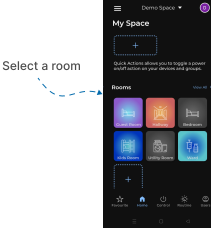
- Navigate to the Rooms section.
-
Select a Room
- Tap on the room from where you want to setup Curtain Retro Modes.
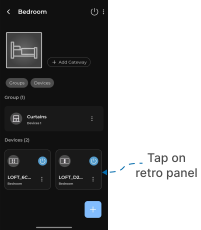
- Locate the Device
- Find the Curtain Retro Device, Tap it to proceed setup.
- Set Mode Curtain Retro
-
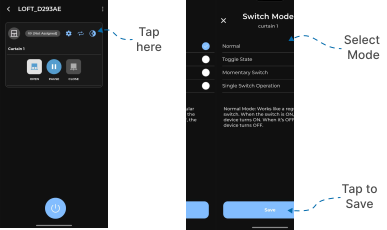
Locate the Modes icon in curtain control and Tap on it.
-
Switch Mode screen appears.
-
By default mode is set to Normal.
Note: ⚠️ The behavior of each mode also depends on how your switch is wired and the switch type.
-
You can change the mode from the following options according to your preferences.
-
1. Normal: Works like a regular switch. When the switch is ON, the device turns ON, When it's OFF, the device turns OFF.
-
2. Toggle State: The device changes it's state each time the switch changes position, regardless of ON or OFF.
-
3. Momentary Switch: The device activates only while the switch is being pressed. It's useful for temporary control like a doorbell.
-
4. Single Switch Operation: Controls the curtain with one switch. Pressing the switch cycles through Open → Pause → Close → Pause → Open.
-
After selecting the Mode, Tap on Save.
-